Newsletters
A newsletter ties everything together: what to include, how it looks, who gets it, and when. You can have as many as you like, e.g. a weekly digest for everything and a monthly one just for books.
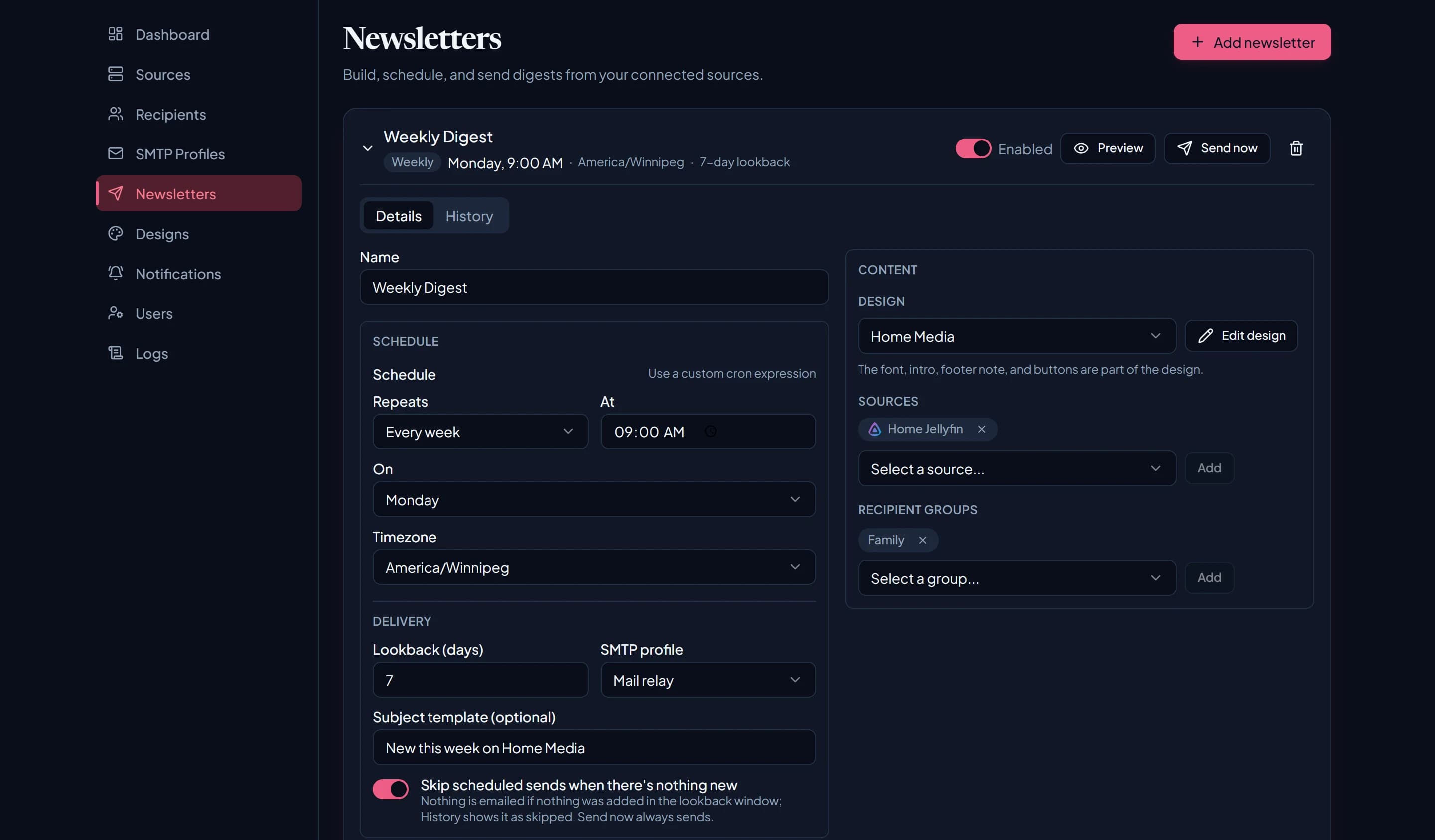
Settings
| Setting | What it does |
|---|---|
| Name | Shown in the admin UI, and the email’s heading in the Default design. |
| Schedule | When it sends. See below. |
| Timezone | Any IANA timezone, e.g. America/Winnipeg. Defaults to your browser’s timezone. |
| Lookback | How many days back to look for new items at send time. Default 7. |
| Sources | Which sources feed it. |
| Groups | Which recipient groups get it. |
| SMTP profile | Which profile sends it. |
| Sender identity | Optional From name and email that override the profile’s defaults. |
| Subject | Optional. Plain text, e.g. “What’s new this week”. Defaults to the newsletter’s name. |
| Design | How it looks. Defaults to the Default design. |
The subject is used as written; it doesn’t fill in dates or counts. The design can show those in the email itself.
Schedules
The simple picker covers most needs:
- Every day at a time.
- Every week on a weekday, at a time. The default is Monday at 08:00.
- Every month on a day from 1 to 28, at a time. It stops at 28 so it lands on a real date every month.
For anything else, switch on Use a custom cron expression and enter a standard five-field
cron expression, e.g. 0 8 * * 1 for Mondays at 08:00.
Catch-up
If LatestArr was down when a send was due, it catches up when it starts again. It sends once, however many runs were missed, and marks it as a catch-up in the history.
Skip when there’s nothing new New in 0.11
With Skip scheduled sends when there’s nothing new switched on, a scheduled or catch-up send with no new items is recorded as “Skipped (nothing new)” instead of mailing an empty issue. New newsletters have it on. Newsletters from earlier versions keep sending as before until you turn it on.
Filler content, like a design’s “show a few from the library” option, doesn’t count as new. Send now always sends.
Preview and test send New in 0.11
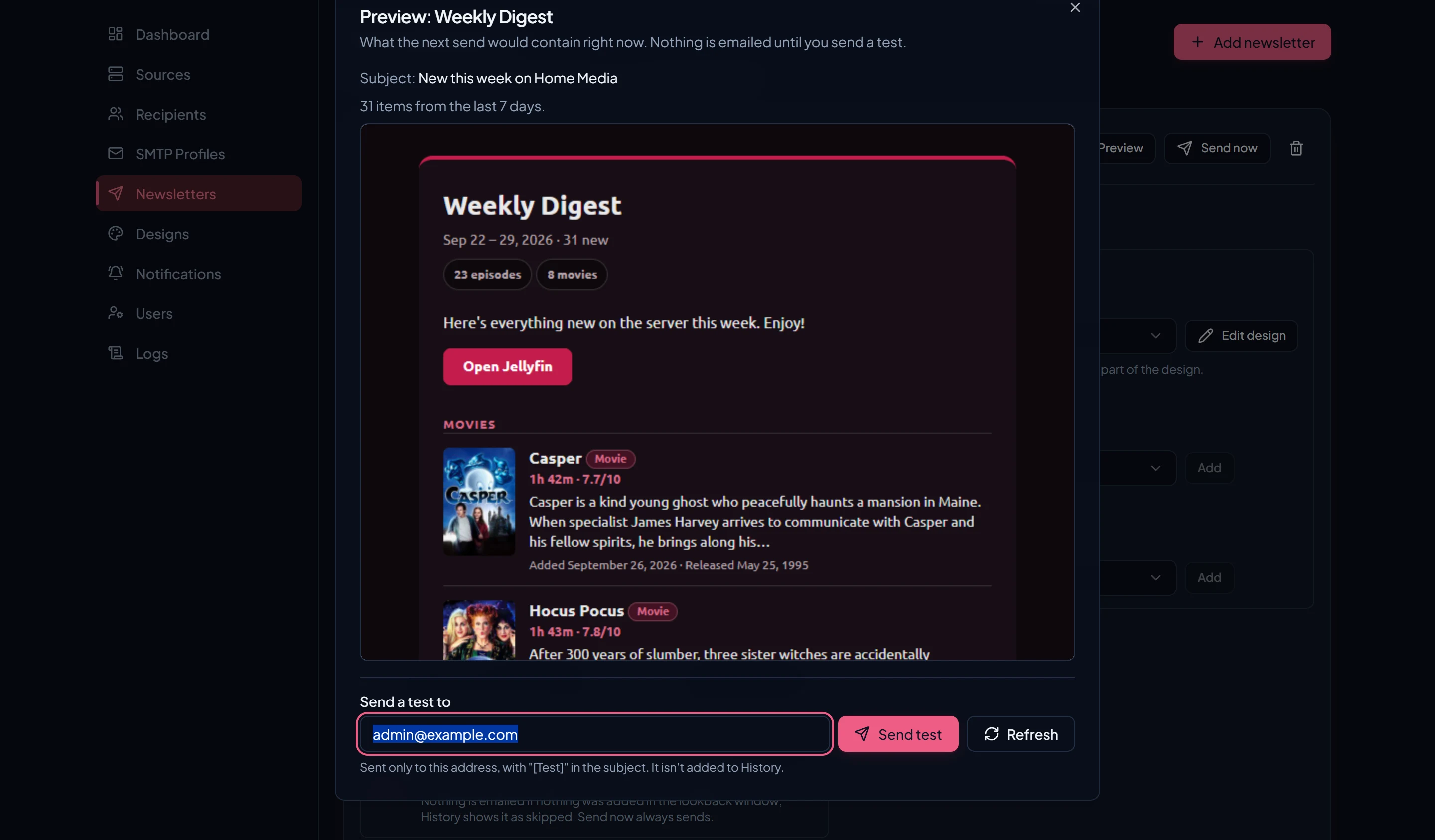
Preview renders the real next issue, with the actual items, subject, and posters, without
sending anything or adding to the history. From there you can Send a test to any address; it
arrives with [Test] at the start of the subject.
Send now
Send now sends to everyone straight away, whatever the schedule. Use Preview first if you’re not sure what’s in it.
Only one send per newsletter runs at a time; a second one is refused until the first finishes.
History
Every send is recorded with its status (success, partial failure, failed, or skipped), what it included, and how many recipients it went to. Open a send to see:
- each recipient and whether their message was accepted by your SMTP server;
- the error, if something went wrong;
- a copy of the exact email that was sent.
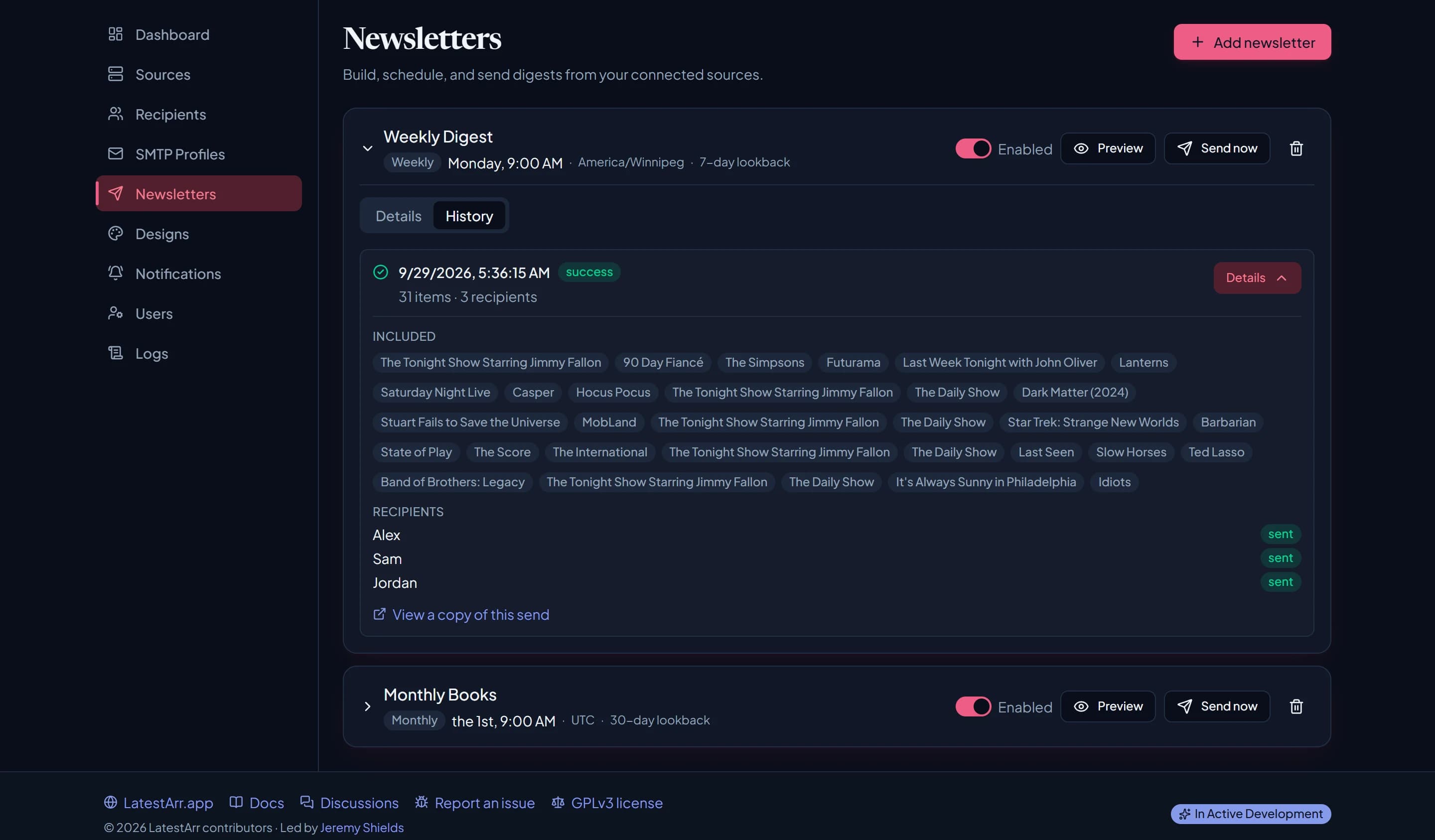
“Sent” means your SMTP server accepted it. What happens after that (spam filtering, bounces) is between your provider and the recipient’s. See Deliverability.
Want to know when a scheduled send fails? Set up failure alerts.