Designs New in 0.11
A design controls how a newsletter’s email looks: fonts, colours, layout, which details each item shows, the intro and footer text, and buttons. Any number of newsletters can share a design.
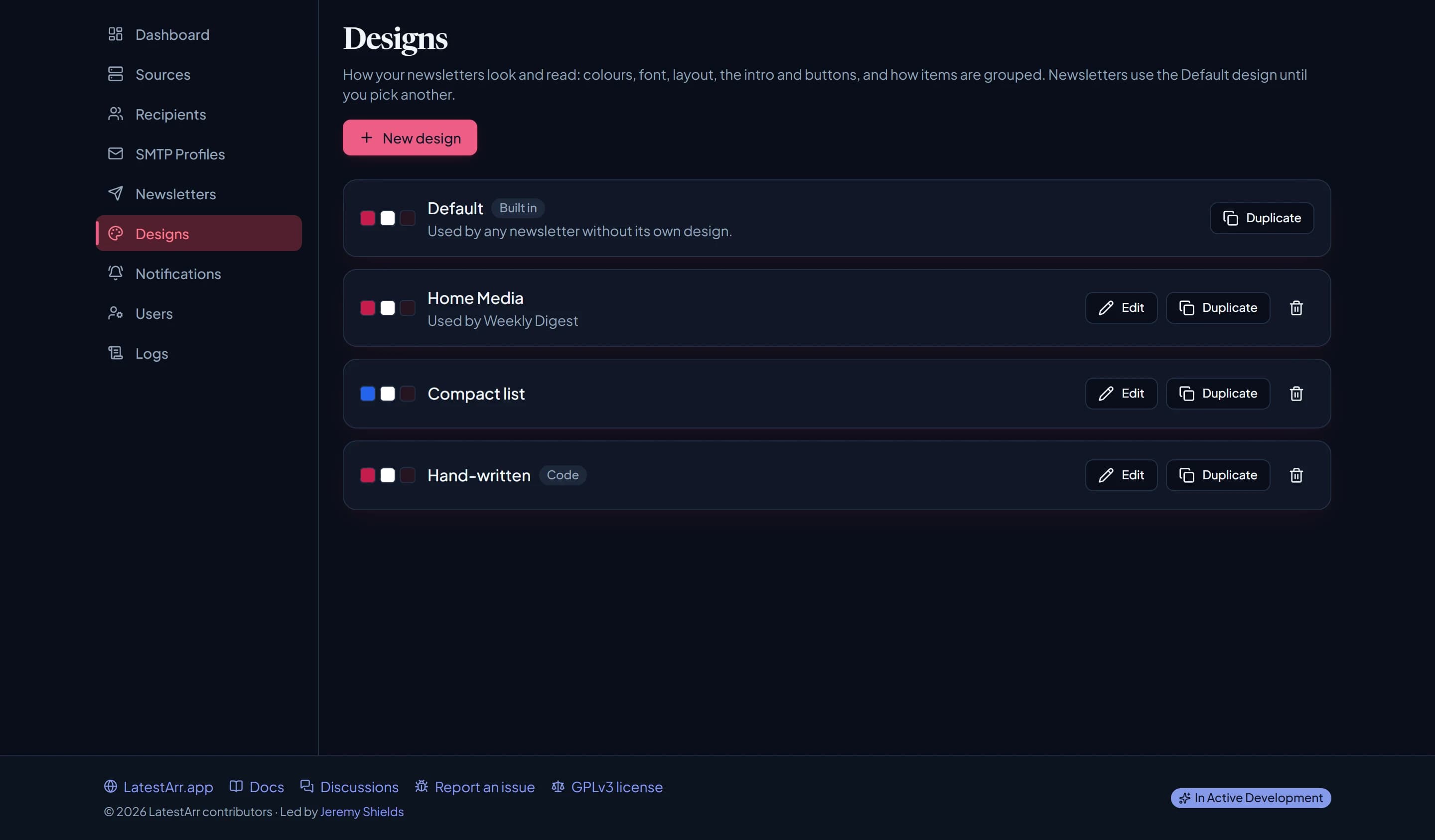
There are two kinds:
- Options designs are built in the design editor with a live preview. No HTML needed.
- Code designs are hand-written MJML with Handlebars. See Code mode.
Designs replace the drag-and-drop template editor from earlier versions. When you upgrade, old templates become code designs automatically and keep sending exactly as before. See Upgrading to 0.11.
The Default design
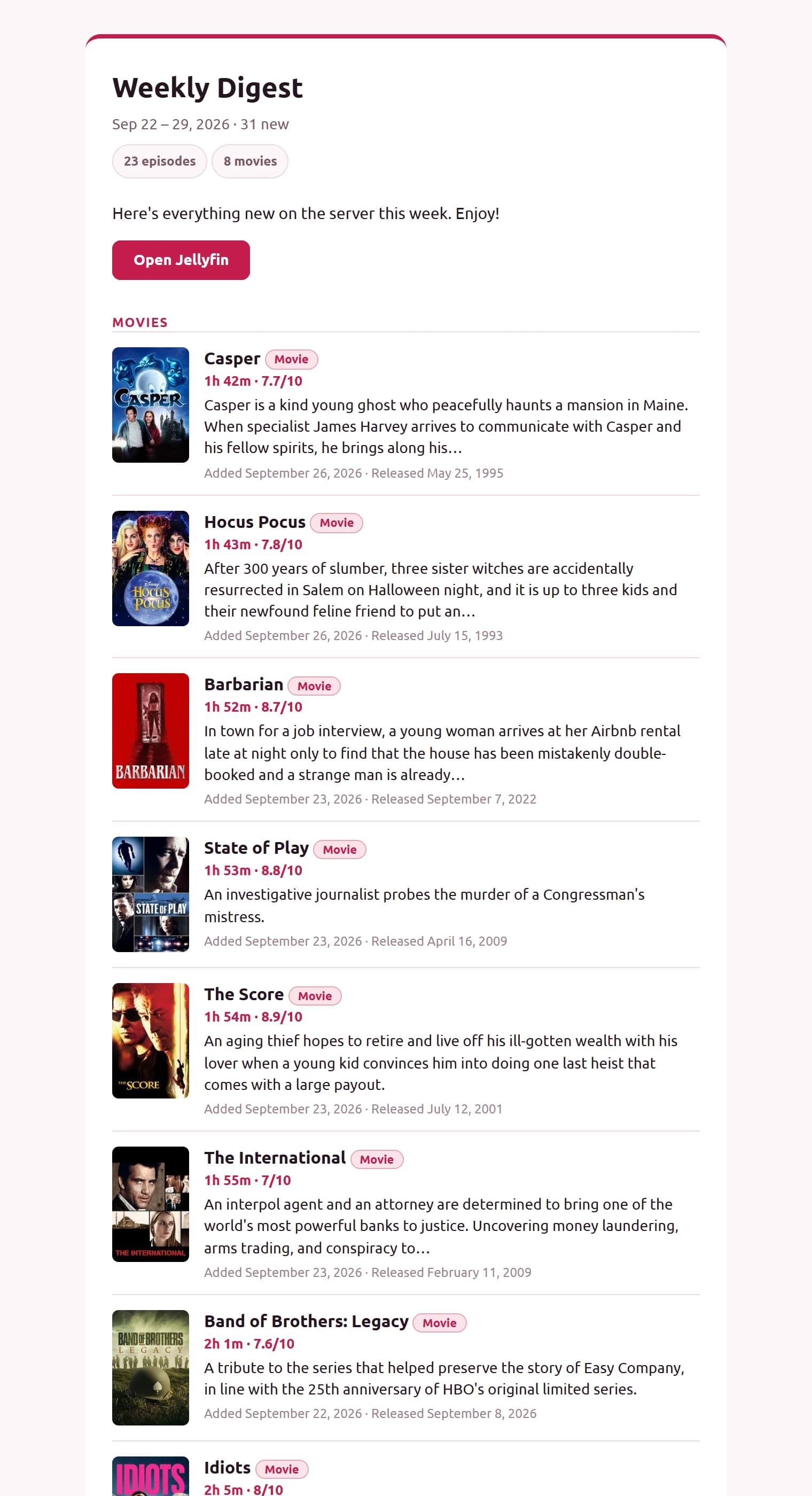
Every newsletter uses the built-in Default design unless you pick another. It’s a white card with a pink bar across the top, on a softly tinted page:
- a header with the newsletter’s name, the date range, how many items are new, and a count per type (“23 episodes”, “8 movies”);
- a section per type (Movies, TV, Books, Audiobooks, Games) with uppercase pink labels;
- one tidy row per item: poster, title, a type badge, runtime and rating, a summary trimmed to about two lines, and the added and release dates;
- a show’s new episodes grouped into one row (“4 new episodes”);
- a short footer crediting LatestArr, with links to latestarr.app and to report an issue.
You can’t edit the Default design directly. To change it, Duplicate it and edit the copy. New designs start as a copy of the Default.
Making a design
- Go to Designs and choose New design (or Duplicate an existing one).
- Adjust the options. The preview updates as you go, and Preview with lets you check it against sample content or a real newsletter’s items.
- Save.
- On a newsletter’s settings, choose the design.
Deleting a design that newsletters use switches them back to the Default design. LatestArr warns you first.