First-run setup
Create the admin account
The first time you open LatestArr, it asks you to create an admin account. Passwords need at least 12 characters.
This form only appears while the database has no users. After that, the only way in is to sign in.
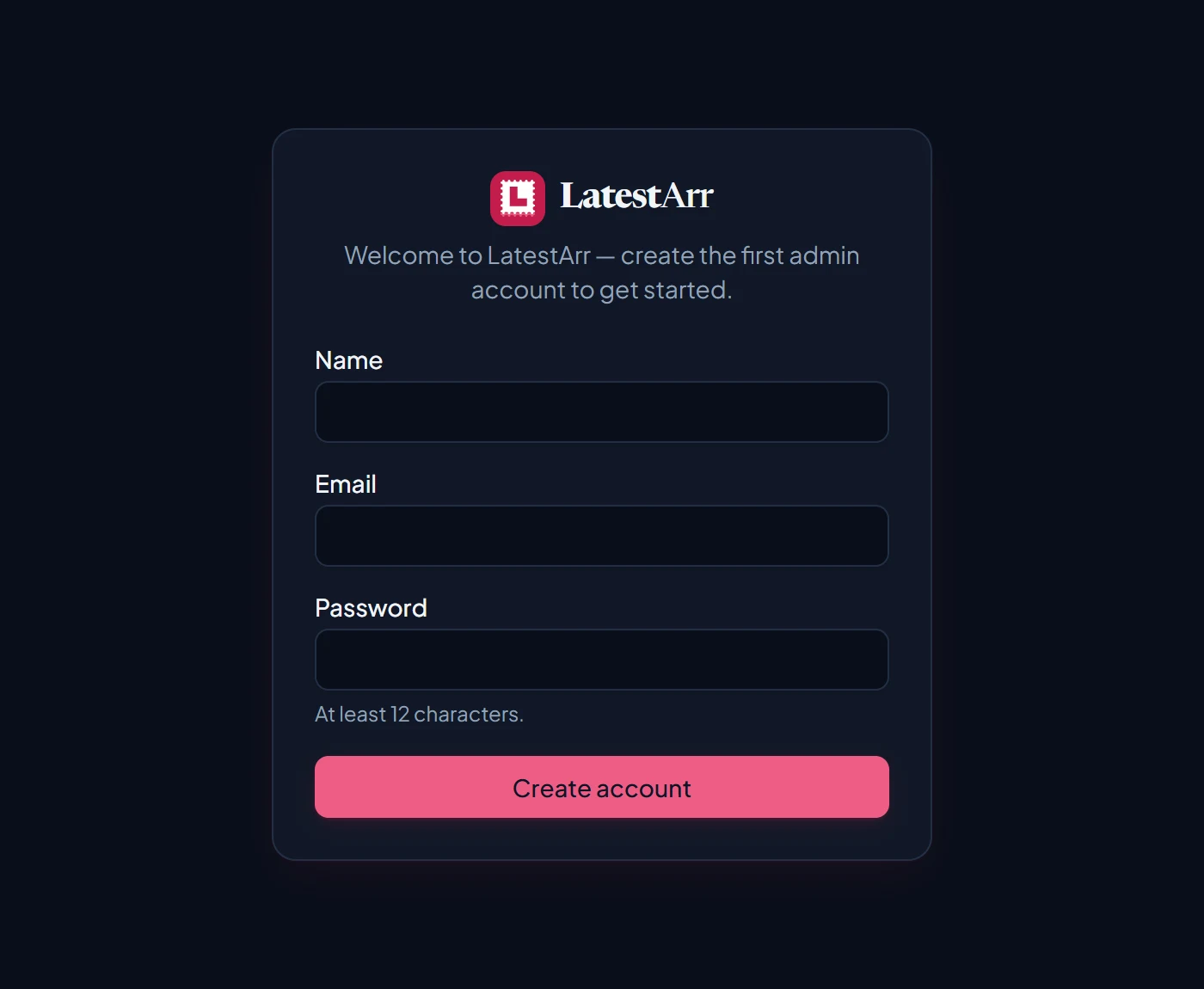
This is the only account the setup form creates. Add everyone else afterwards on the Users page. If you want to use SSO, read SSO with OIDC before creating the account.
Follow the checklist
Once you’re in, the dashboard shows a Getting started checklist. It’s not a separate wizard: each step links to the same screens you’ll use day to day.
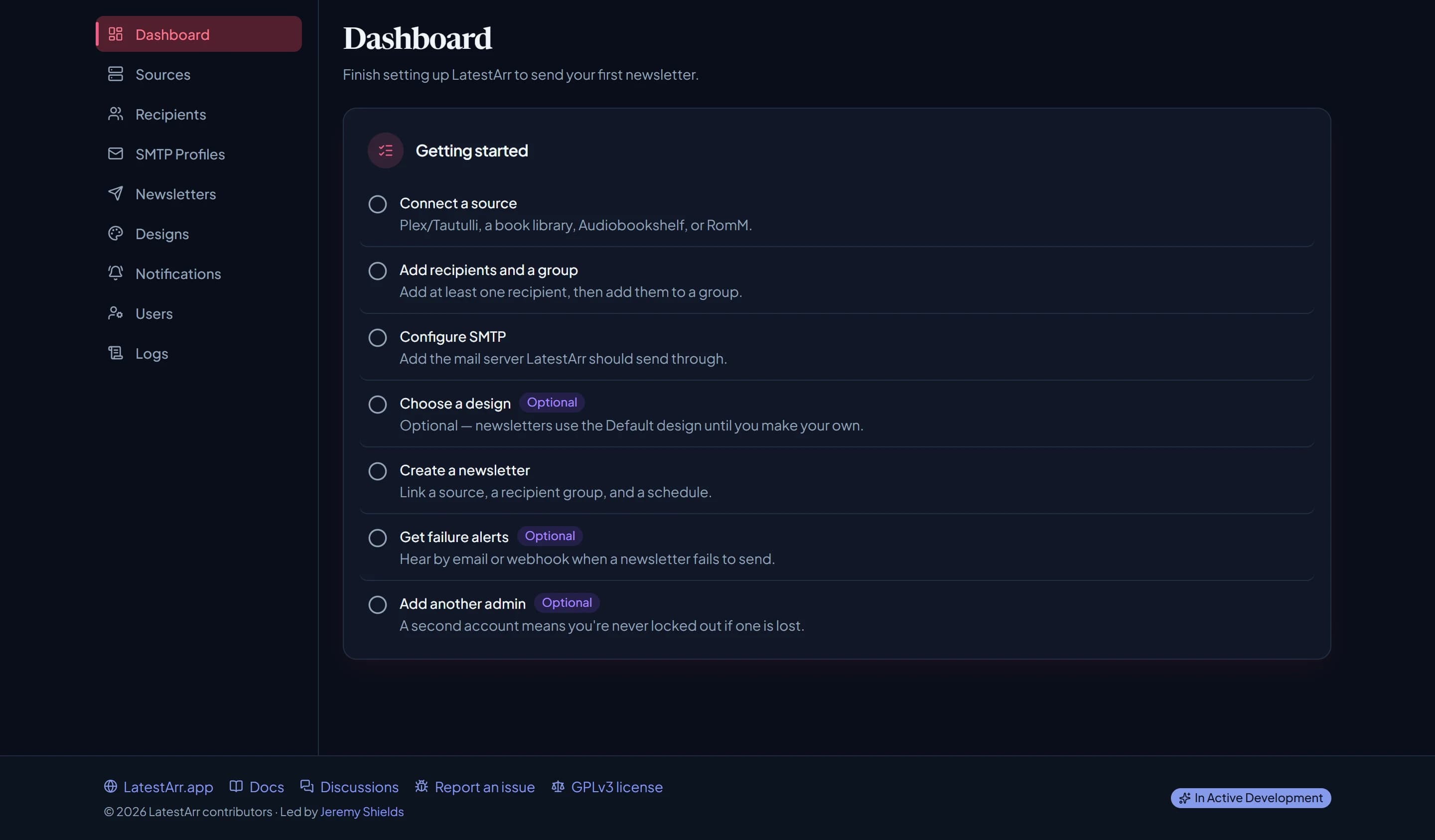
Connect a source
Add your media server or library and use Test connection before saving. See Sources for what each one needs.
Add recipients and a group
Import users from your source, paste a list, or add people one at a time. Put them in a group, because newsletters send to groups. See Recipients and groups.
Add an SMTP profile
Connect the mail server you’ll send from, then use Send test email. See Email delivery.
Pick a design (optional)
Newsletters use the built-in Default design unless you choose another. See Designs.
Create a newsletter
Choose its schedule, lookback, sources, groups, and SMTP profile. Use Preview to check the next issue and send yourself a test before trusting the schedule. See Newsletters.
Get failure alerts (optional)
Switch on an email or webhook alert for failed sends, so you hear about problems. See Notifications.
Add another admin (optional)
Add a second user, so you’re not locked out if one account is lost. See Users.
When the required steps are done, the checklist collapses to “Setup complete” and the dashboard shows your counts and recent sends.